
In arrobaMail, opens and clicks are used in two different ways inside an automation: as a trigger, to start a new flow when someone reacts; and as a condition, to branch a flow that's already running based on what each contact did. Understanding that difference is what separates a mass send from a conversation — and it's all you need for one send to turn into different messages for different people.
From behavior to conversion
Campaign sent
Open or click
Trigger or condition
Email based on what they did
Engaged contact
Measure and keep improving
One send branches into different messages depending on what each person did. That is treating every contact like a person.
Here's an example to get oriented. You send a launch campaign. Instead of treating everyone the same, the flow reacts: whoever clicks the product link gets a second email right away with the expanded offer, and whoever never opened gets a reminder with a different subject a few days later. Every contact gets the message that fits them. That's what you're going to build here.
Before you start
- An arrobaMail account with at least one campaign already sent: that's what the behavior is measured against.
- A list with active contacts.
- Some experience building an automation. If this is your first one, start with the welcome flow from a form.
The 6 steps
- 1
Trigger or condition: two ways to use the same signal
One starts a new flow; the other branches one already running. Choosing wrong changes everything.
- 2
Case A: a flow that starts on an open or a click
Reacting to interest while it's hot, without you doing anything.
- 3
Case B: branching a flow based on behavior
The most common use, and the most profitable: two paths after a campaign.
- 4
Build the branch with a concrete example
The pattern that works after any important send, step by step.
- 5
The detail: the signal points at a specific campaign
You're not measuring «any email»: you pick which one. Knowing that up front changes how you design the flow.
- 6
Activate, measure and adjust
The dashboard tells you how many took each branch. That number is gold for your next campaign.
1. Trigger or condition: two ways to use the same signal
In the editor palette you'll find opens and clicks twice, in different categories. That's not redundancy: they're two different tools.
- Under Triggers: «Email open» and «Email click». They start a new flow when the behavior happens.
- Under Conditions: «Opened email» and «Clicked email». They evaluate, inside a flow that's already running, whether the contact opened or clicked, and send them down one branch or the other.
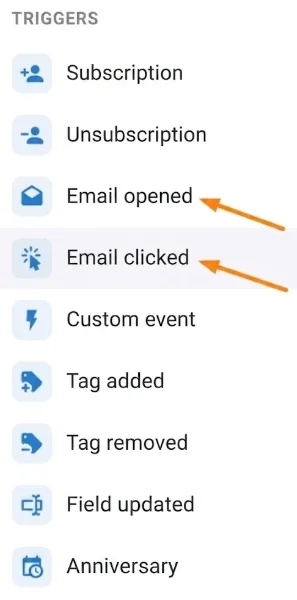
The rule for choosing is simple: is the person already inside a flow? If they're not, and you want the behavior to bring them in, use the trigger. If they already are, and you want to split the path, use the condition.
2. Case A: a flow that starts on an open or a click
This is for reacting while it's hot. Someone clicks the link in a launch campaign: that's a fairly strong signal of interest, and it's the exact moment to send them the expanded information and an offer.
The «Email click» trigger pointing at that campaign is the front door of the flow. And it has a level of precision worth knowing about: besides picking the email, you can pick which link.
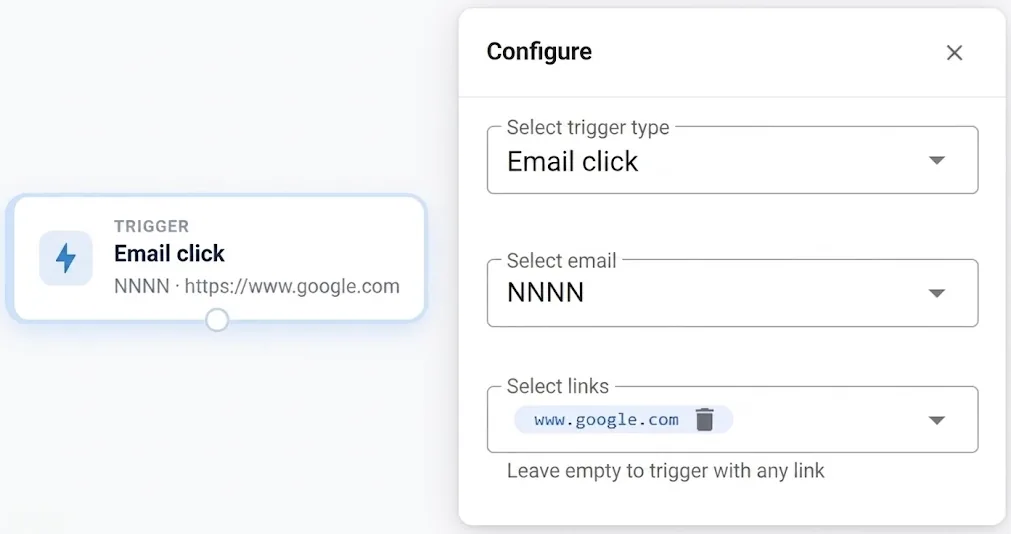
That detail opens up very fine-grained cases. If your campaign has three links — "see plans", "read the case study" and "talk to sales" — you can build a different flow for each, because each click says something different about what that person is thinking. Whoever went to "see plans" is much closer to buying than whoever went to "read the case study", and deserves a different message.
The «Email open» trigger works similarly, but the signal is weaker: opening says "the subject line caught my eye", not "I'm interested in the product". Use it for soft logic; save the click for the important decisions.
3. Case B: branching a flow based on behavior
This is the most common use, and probably the most profitable. Inside a flow, after sending an email and waiting a reasonable amount of time, you place a condition that evaluates the behavior and splits the path: whoever clicked goes down one branch, whoever didn't goes down the other.
The wait before the condition isn't optional. If you ask "did they click?" five minutes after the send, the answer will be "no" for almost everyone, simply because they haven't read the email yet. Give it at least a day, better two or three.
4. Build the branch with a concrete example
This is the pattern that works well after any important campaign:
You sent your launch campaign
Did they click the email?
They get the expanded information
They showed real interest: ride the momentum with product detail, a use case, or the buy link.
They get a resend with a different subject
You did not lose them — they may not even have seen it. A second try with a different hook recovers opens you had written off.
The same logic works with "did they open it?" instead of "did they click?": a softer signal for a gentler branch.
One condition and two branches: the difference between sending everyone the same thing and talking to each person about what they care about.
Both branches are equally valuable. The yes branch capitalizes on interest that already exists. The no branch rescues people who probably never even saw the email: a resend with a different subject, a few days later, recovers opens you'd written off — exactly the mechanic we cover in resend to people who didn't open.
You can also chain conditions to get more precise: first "did they click?" and then, on the no branch, a "did they at least open it?". That leaves you three groups with different treatment: the interested one, the one who looked but didn't act, and the one who never noticed. That last group, if it repeats send after send, is a natural candidate for a re-engagement flow.
5. The detail: the signal points at a specific campaign
A technical point worth knowing before you design the flow: open and click triggers and conditions are evaluated against a sent campaign. When you configure them, you pick from a list of campaigns.
In other words, the behavior you're measuring belongs to one specific send, not to "any email". That has two practical consequences:
- The flow is tied to that campaign. If next month you send another one and want the same logic, you have to point the condition at the new campaign (or duplicate the flow and change its reference).
- If you want to measure an email that goes out from the flow itself, make sure that send is recorded as a campaign so you can reference it. Otherwise it won't show up in the dropdown.
None of this is an obstacle, but knowing it up front saves you from redesigning the flow halfway through.
6. Activate, measure and adjust
Save, activate and let it run. Over time, the automation dashboard shows you how many contacts took each branch — and there you have, in numbers, how many engage by clicking and how many need a nudge.
That figure is among the most actionable things the platform gives you. If 40% click, your subject line and your offer are working: replicate that pattern. If 90% fall into the "no" branch, the problem is almost never the flow: it's the subject line, the sender or the proposition. How to read those numbers in depth is in interpreting reports and metrics.
The three triggers that start a conversation
This tutorial covers the one that reacts to what people do. All three together are the full range:
| Trigger | Fires when… | Best for | Guide |
|---|---|---|---|
| Subscription | someone confirms their sign-up to a list | a welcome sequence from a form on your site | welcome from a form |
| Custom event | your system records an event through the API | purchases, sign-ups from your backend, any action on your platform | firing through the API |
| Email open / click | a contact opens or clicks a campaign | interest-based follow-up, resends, re-engagement | this guide |
The full reference is in automation triggers.
Common mistakes to avoid
- Placing the condition without a wait before it. Asking "did they click?" ten minutes after the send routes almost everyone down the wrong branch.
- Using opens where clicks belong. Opens are a noisy signal: use them for tone, not to decide whether someone is ready to buy.
- Treating the "no" branch as a write-off. It's half your list. It deserves a second attempt, not silence.
- Forgetting the condition points at a campaign. The flow you built for the March launch is still looking at the March campaign.
- Sending the "last call" to someone who already responded. It's annoying and it shows. That's exactly what branching is for.
Next steps
- Go over the detail of every trigger and condition in automation triggers.
- Turn the "no" branch into a full flow with re-engaging inactive contacts.
- Fine-tune who gets what with segmentation by condition groups.
- And if you haven't built the other two front doors yet, they're here: from a form and from your own system.